Specification:
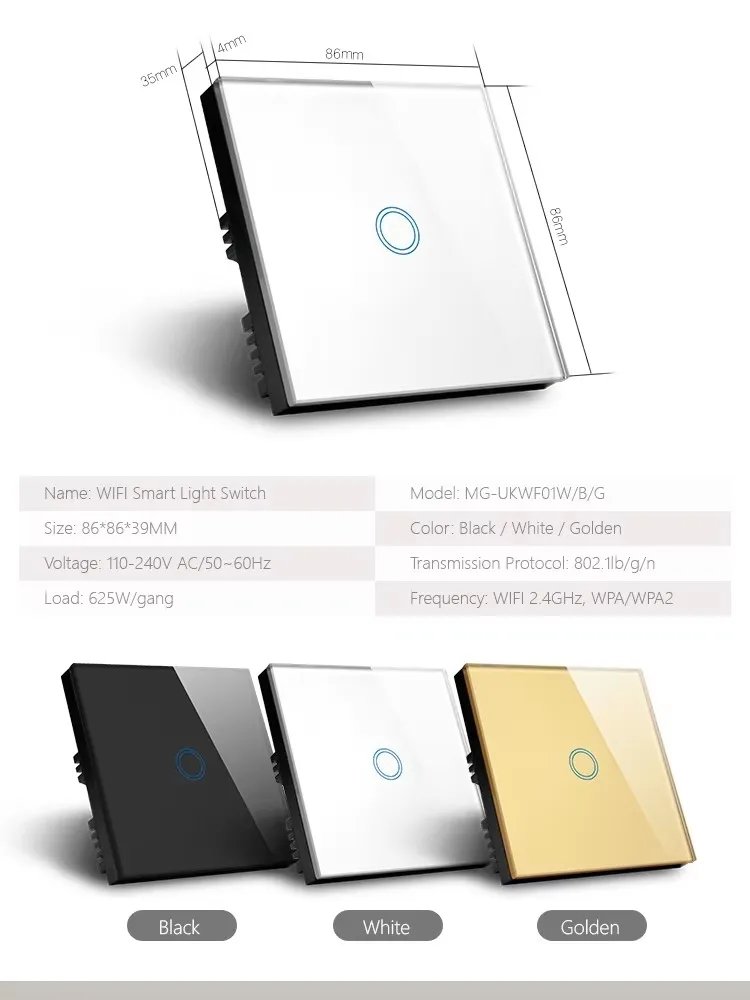
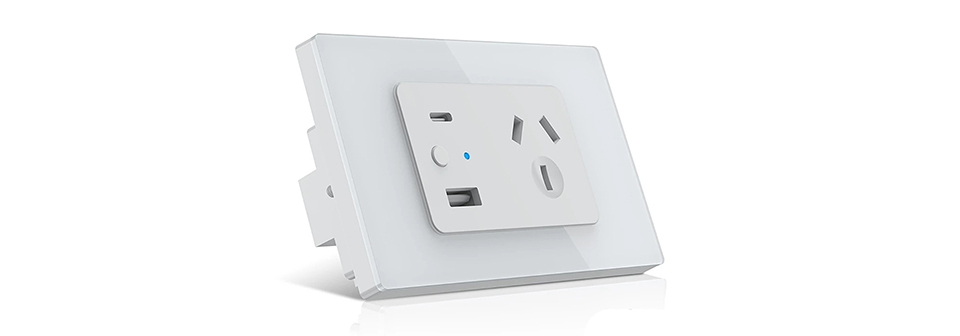
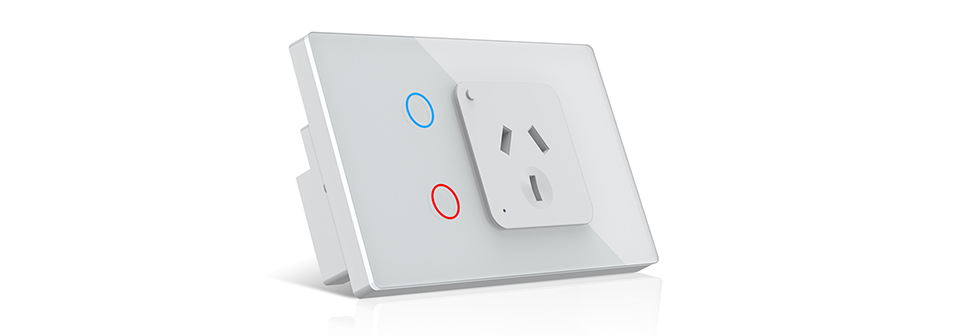
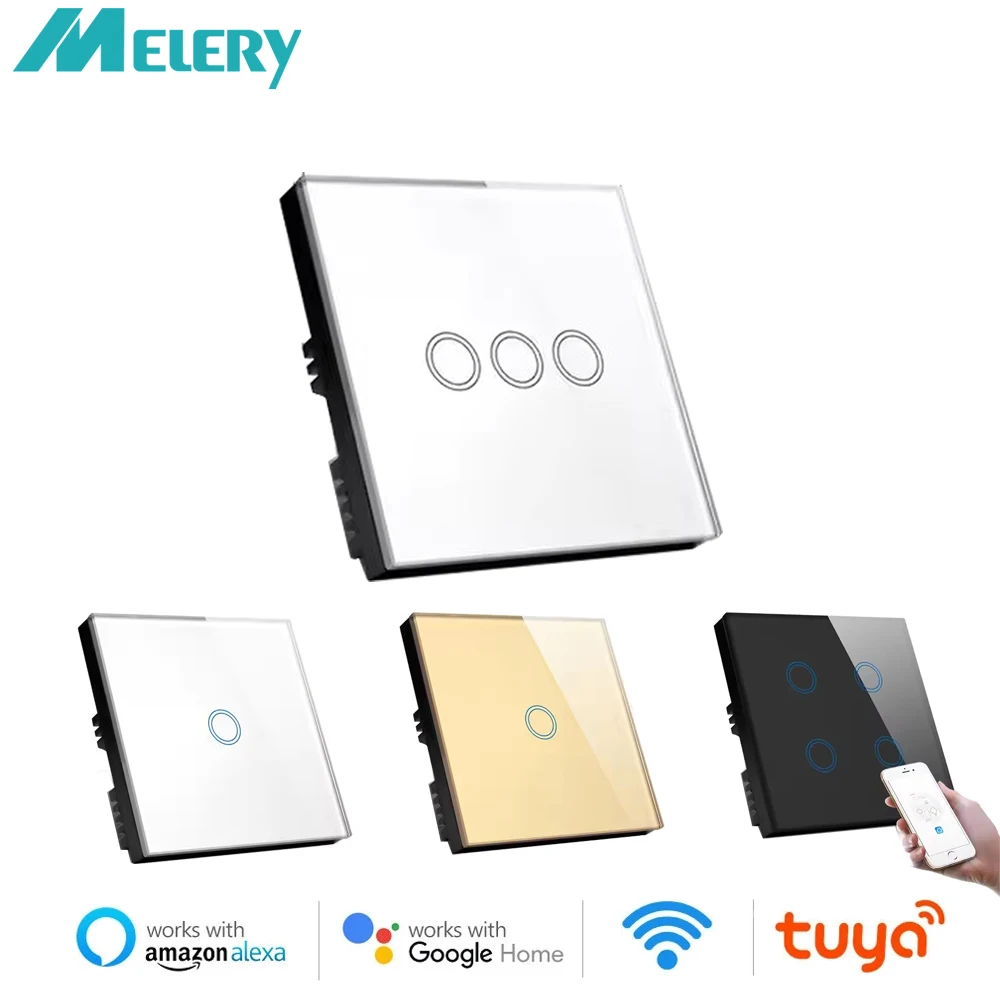
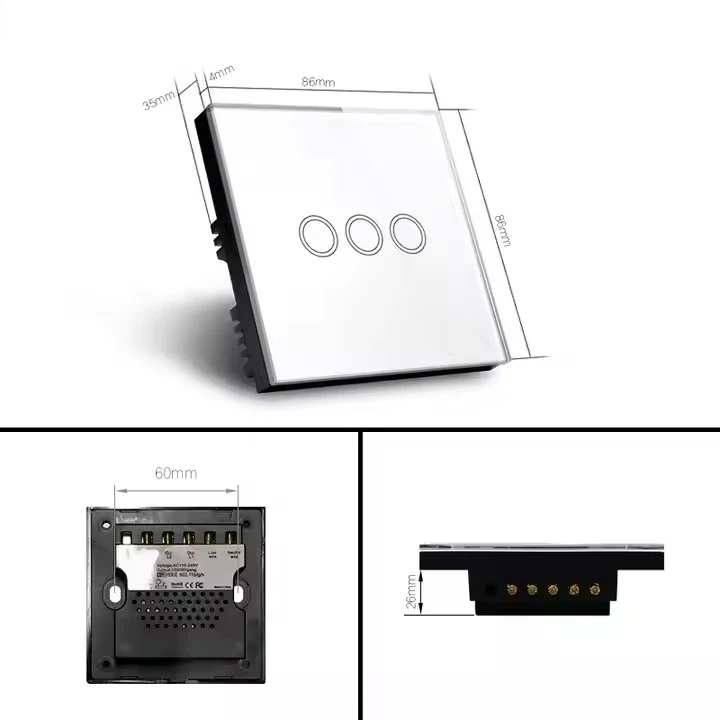
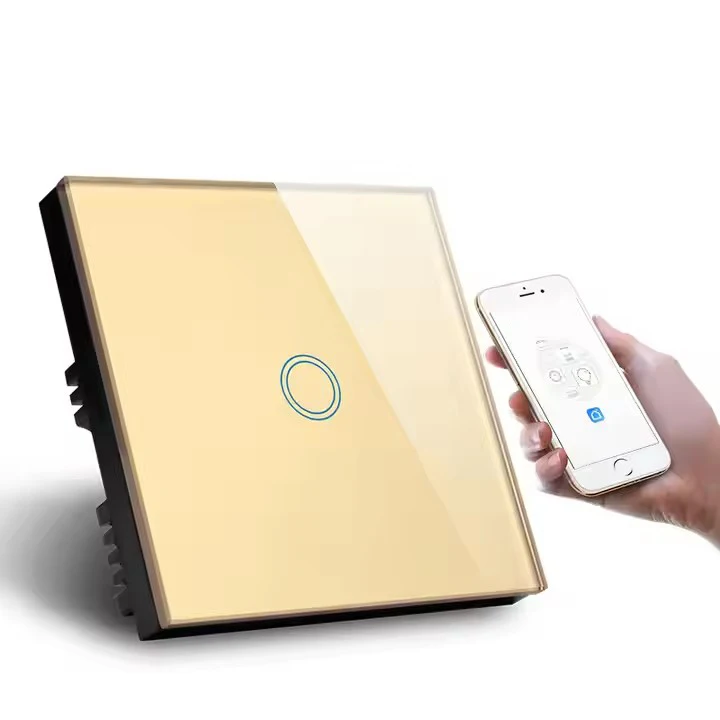
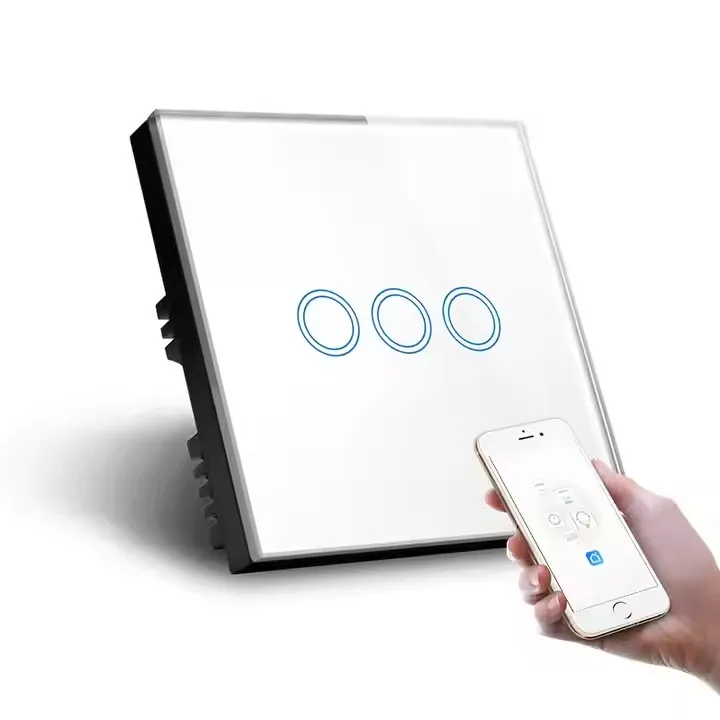
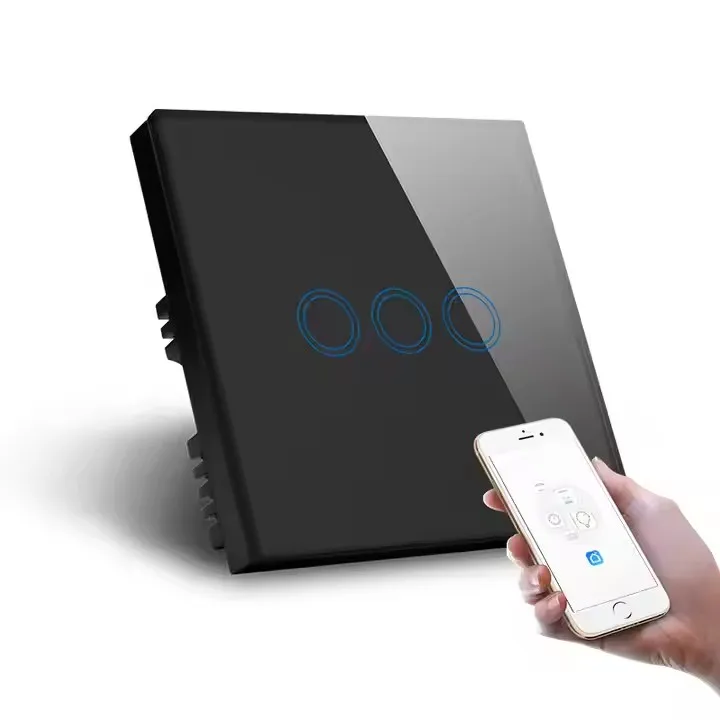
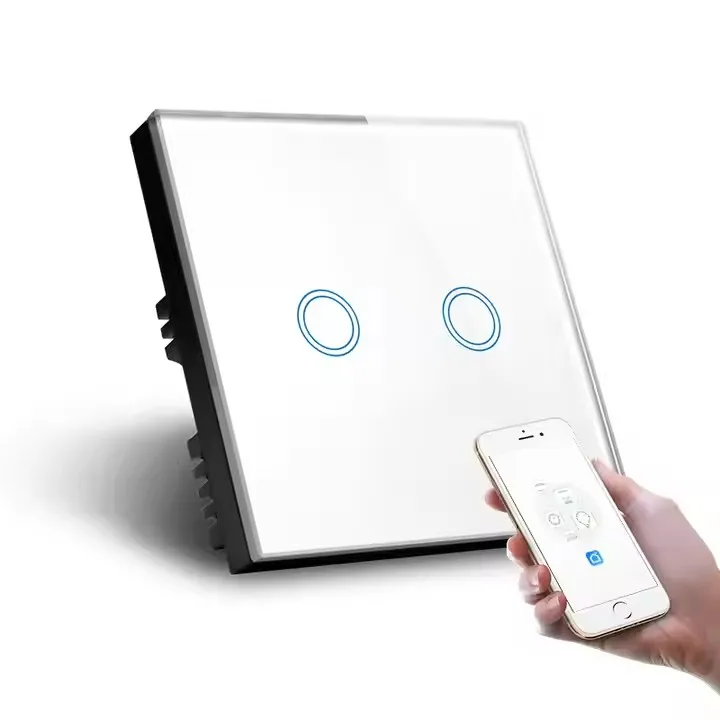
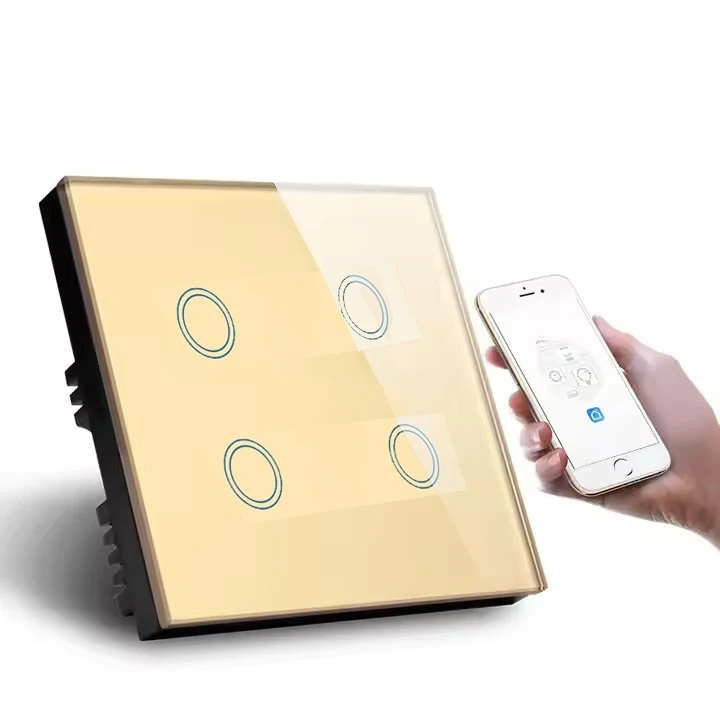
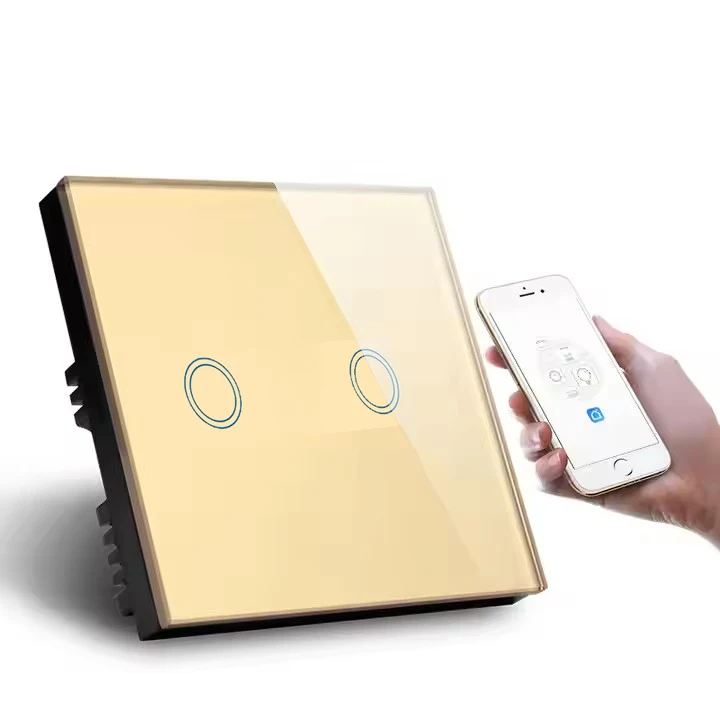
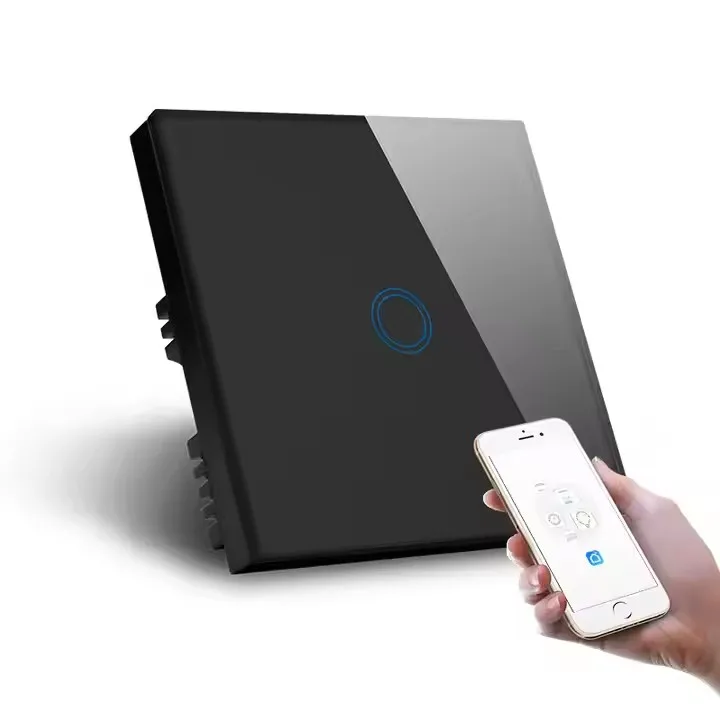
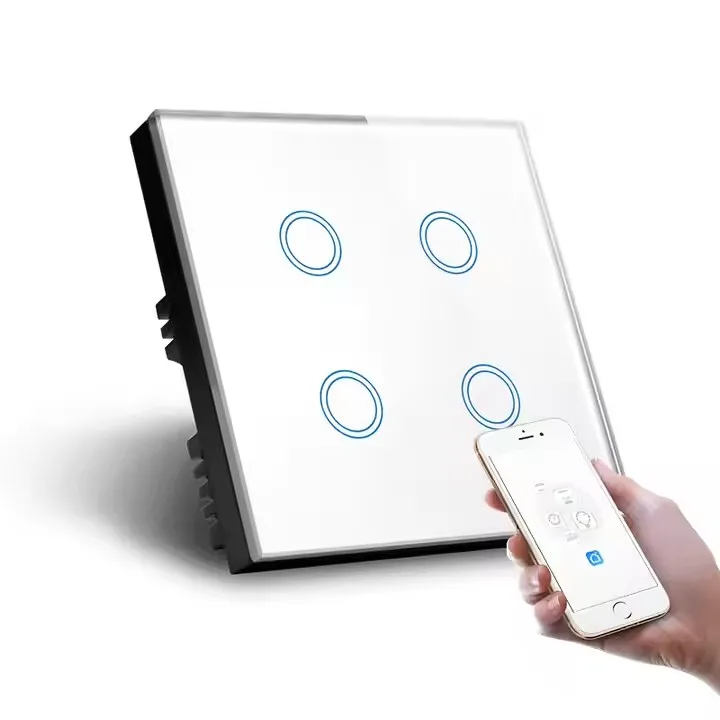
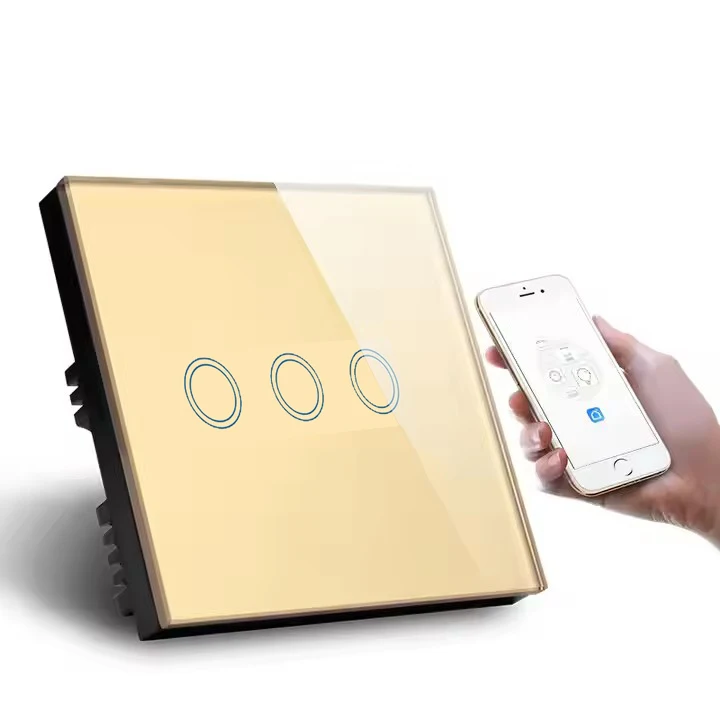
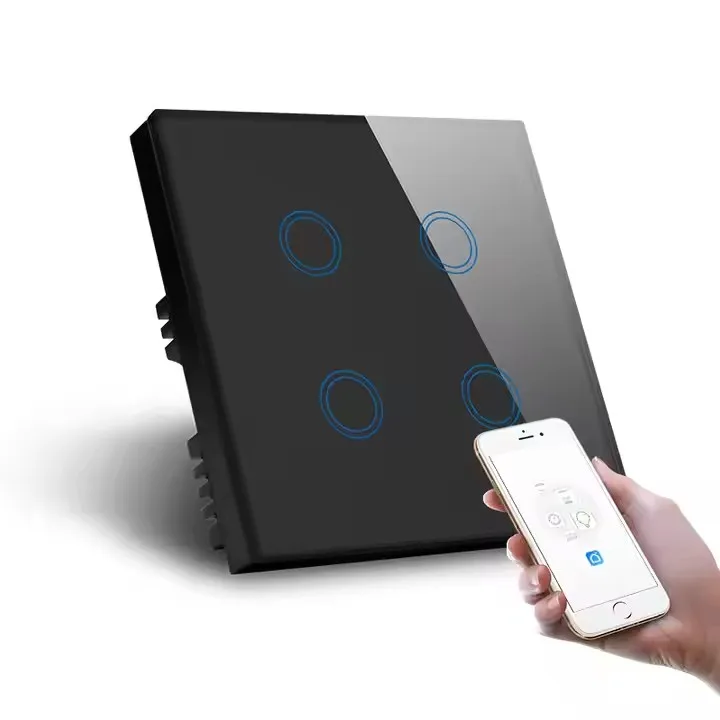
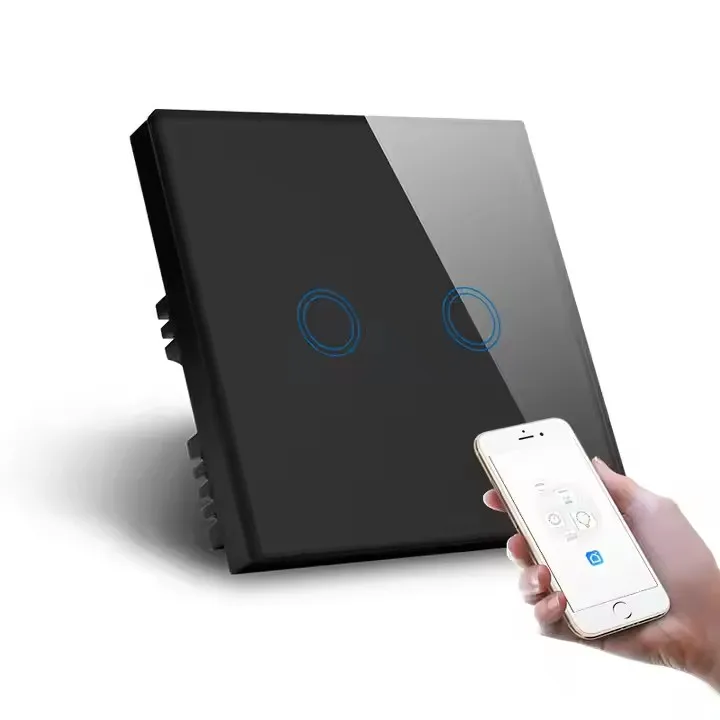
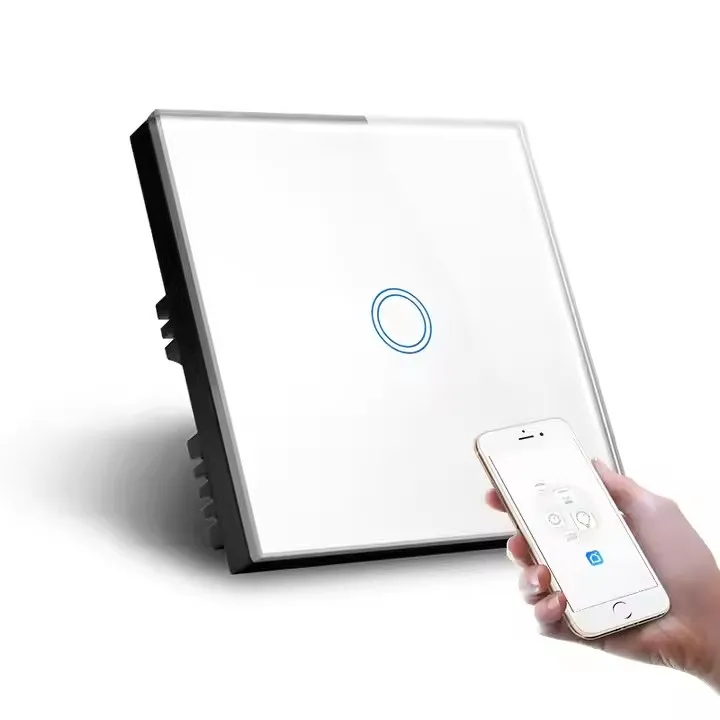
Type: 1/2/3/4 Gang Touch Wi-Fi Switch
Material: PC V0 fireproof + tempered glass panel
Rated Voltage: AC 100V-240V
Wi-Fi: 2.4GHz, IEEE 802.11 b/g/n
Support by : iOS
Wireless Power Consumption: <0.3W
Security mechanism: WPA-PSK/WPA2-PSK
-Melery developed in accordance with the Matter standard protocol. These products have already passed the Matter certification of CSA and can be bound and controlled through ecological platforms such as the uHome+ App, Apple Home App/HomePod Mini speaker, Alexa App/Echo speaker, Google Home App/Google Nest Hub speaker and Smartthings App/Samsung Smartthings hub.
Speaker - Voice Control:
-Voice control can be achieved through Alexa, Siri, Google Assistant or other speakers that have passed the Matter certification.
-Voice Control via Alexa
Turning on/off the device: Alexa, turn on/off the light.
Adjusting the color: Alexa, set the light to red.
Adjusting the brightness: Alexa, set the light to 80%(dimmer function support if it is ).
-Compatible with major voice assistants like Siri, enabling hands-free control of your home's lighting and appliances. Just speak your command and
watch your home respond.
App Control:
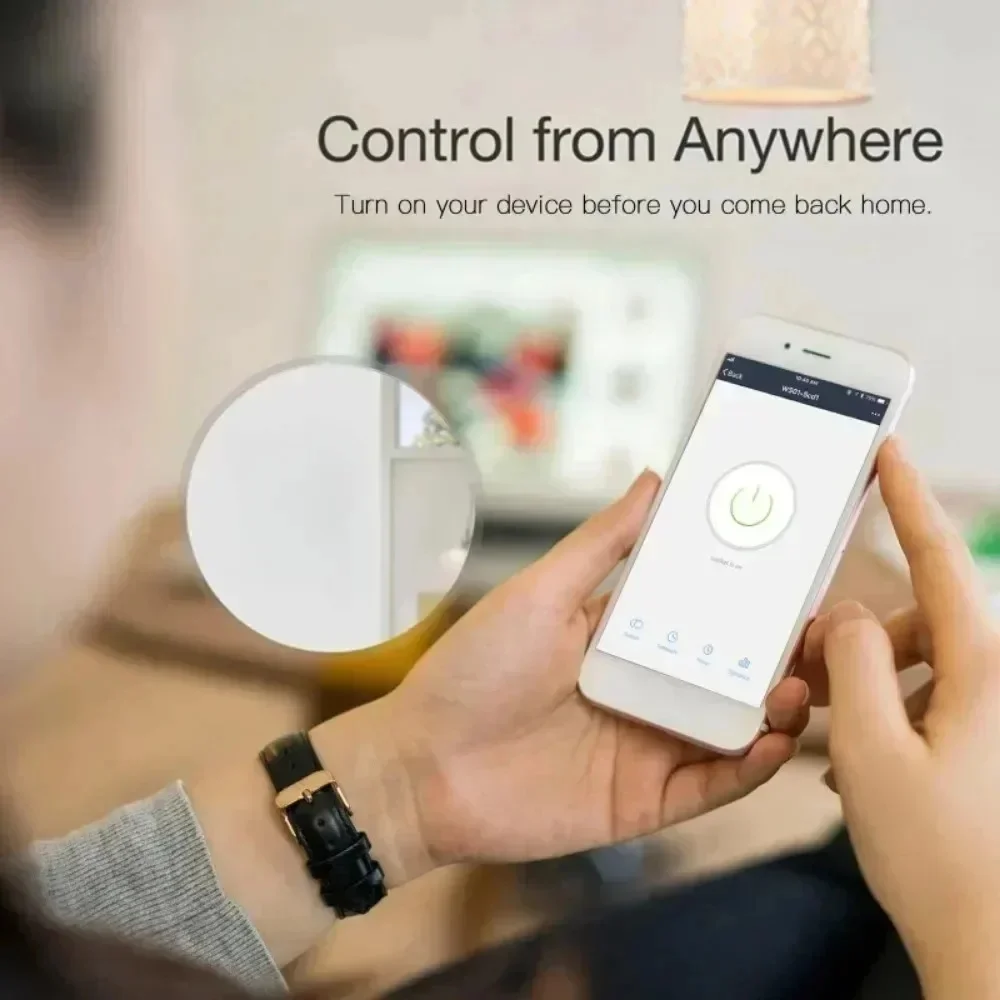
-The device can be controlled through the uhome+, Alexa, Apple Home, Google Home, Smartthings App or other apps that have integrated the Matter SDK.App Control
-After the device is successfully configured to the network, you can use various apps or speakers to complete the control of functions such as switching on/off, brightness adjustment, and color adjustment,
Device Factory Reset:
-For sockets or switches, press and hold the button for 5 - 10 seconds to reset. During the reset process, the indicator light will blink three times. For lighting products, turn the power on and off five times. When resetting, the light will blink three times.
Device Network Configuration:
-Each device has a Matter QR code and an 11-digit short code. If you need to bind the device, you can scan the QR code or enter the 11-digit short code through the paired app for pairing and binding.
Easy Setup & Group Control:
-It works with Apple HomeKit,Simply use smart WiFi switch and scan the HomeKit code, integrate and set up it, No require to install others APP.
Easy Setup, One Control:
-With Matter, Skip the step of downloading and registering multiple manufacturers' apps every time you buy a new device. Instead, head straight to certified smart home platforms like Apple Home, Alexa, Google Home, SmartThings to control all your Matter devices.
High-quality and luxury Design:
-High-quality and luxury design with Big physical button for push control. You can install it in your bedroom or living room. Its minimalist design complements any interior decor, making it not just a switch, but a statement piece.
Easy Installation:
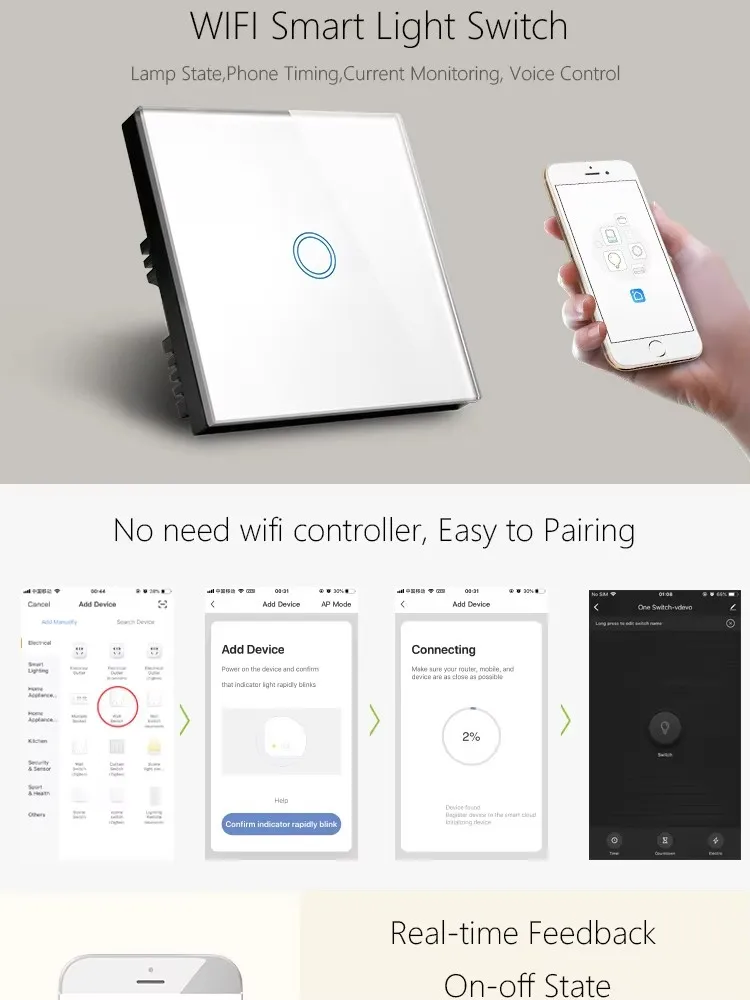
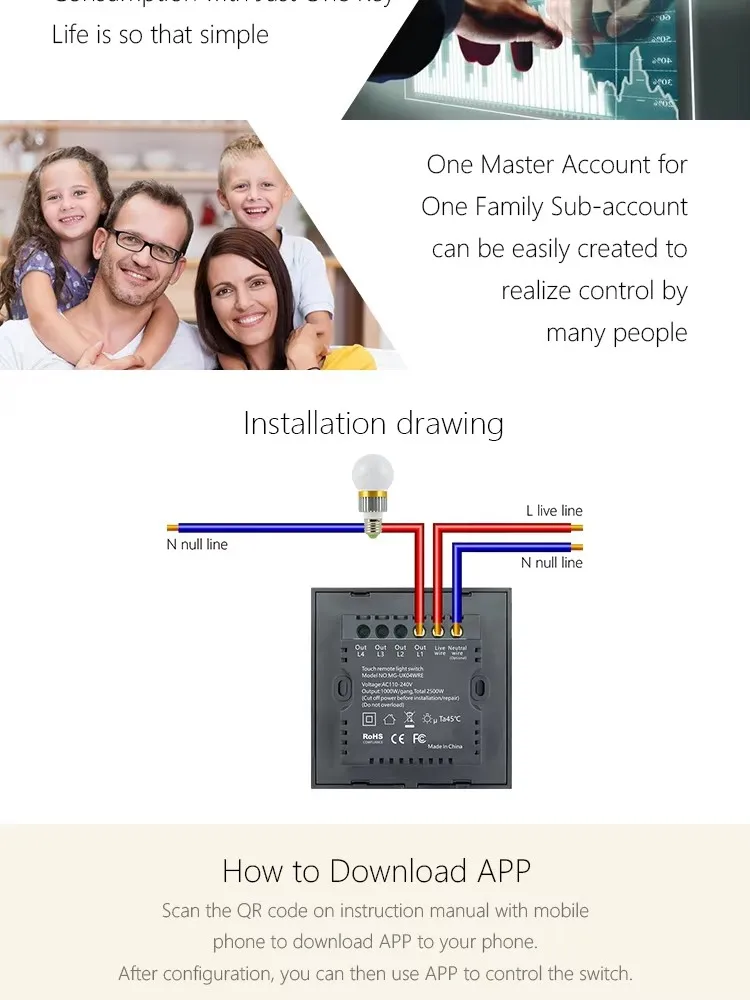
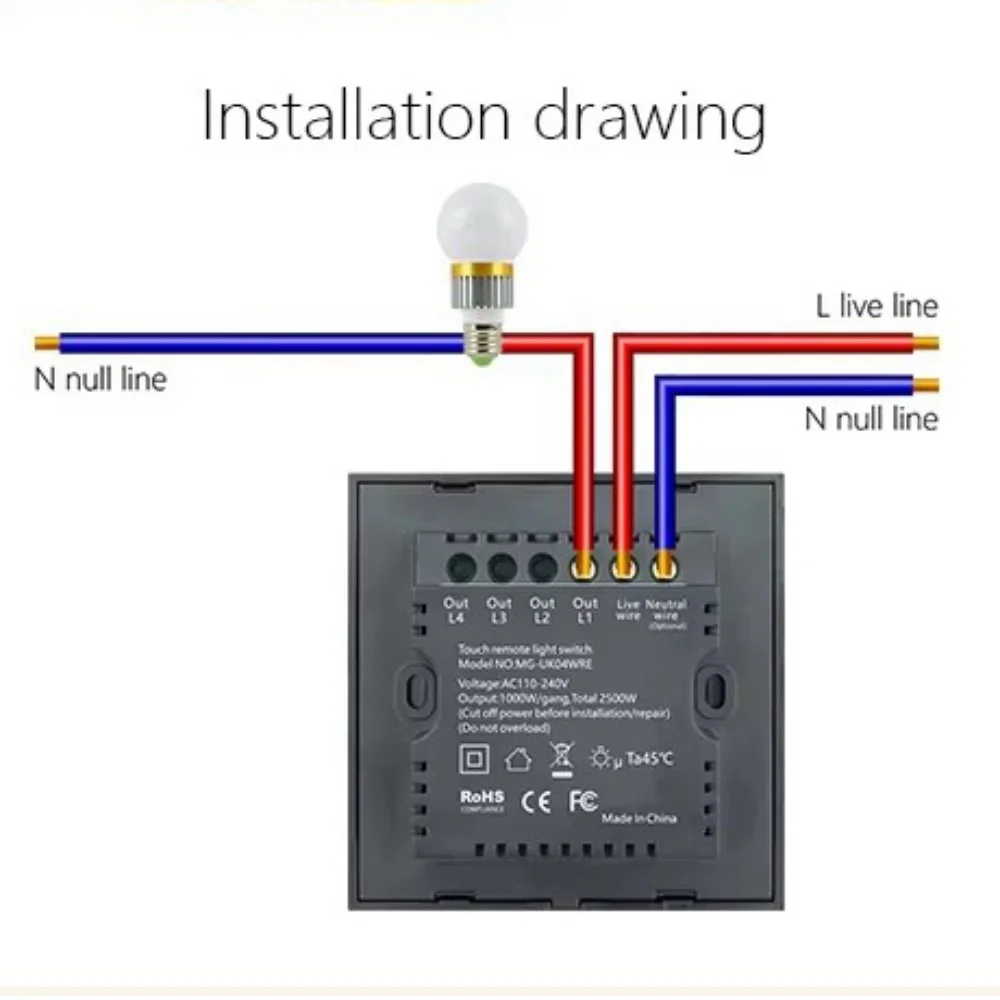
-Designed for a straightforward DIY installation process. Fits into standard wall boxes and connects to your home WiFi network.
Time Setting
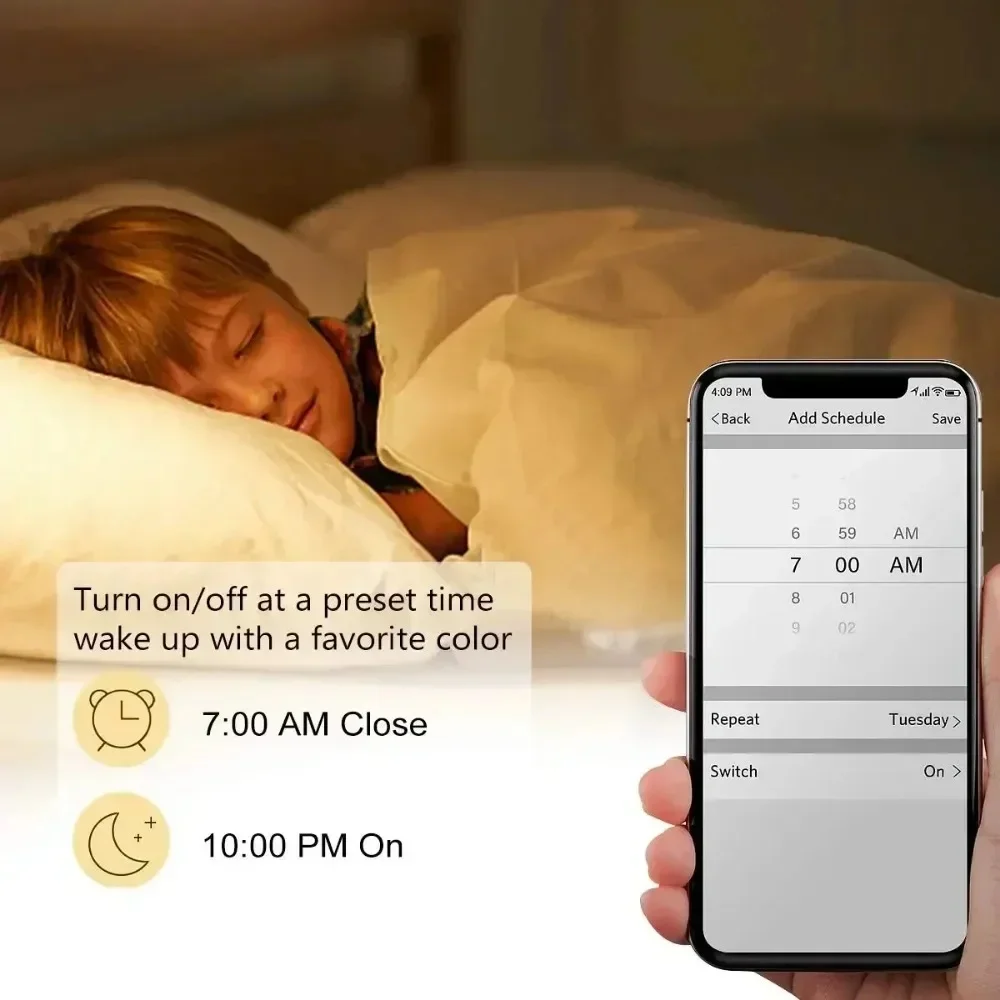
-The intelligent timer switch will automatically turn on after setting a timer for this switch, which is essential for daily scheduling, and bring you a comfortable and intelligent lifestyle.
-Network Configuration via Google Home App
4.1 Environment Check
Install the Google Home app.
There should be a Matter control hub, and any of the following devices can be used: Google Nest Audio, Google Nest Hub, Google Nest Hub (2nd gen), Google Nest Hub Max, Google Nest Mini, Nest WiFi Pro.
4.2 App Network Configuration
Step 1: Open the home page of the Google Home App, click on the "+" sign, and after jumping to the next page, click on "Set up device" and then choose "New device". Add the device according to the prompts.
Step 2: After the device is successfully added, you can set the room location to which the device belongs and modify the device name.
Tips:
Be sure that you are using 2.4GHz WiFi when connecting with the smart bulb. And WiFi must be detectable status. Many routers have 5 GHz and 2.4 GHz network and your phone will always automatically connect to the 5 GHz network. So, you have to completely turn off your 5 GHz network by going to your router settings (enter the router IP address into your internet browser, usually something like 192.168.1.1), forcing your phone to connect to the 2.4 GHz network.